Jump to content
View in the app

A better way to browse. Learn more.

SOS Invision

A full-screen app on your home screen with push notifications, badges and more.

To install this app on iOS and iPadOS
  1. Tap the Share icon in Safari
  2. Scroll the menu and tap Add to Home Screen.
  3. Tap Add in the top-right corner.
To install this app on Android
  1. Tap the 3-dot menu (⋮) in the top-right corner of the browser.
  2. Tap Add to Home screen or Install app.
  3. Confirm by tapping Install.

Most Used Tags 1.1.2

$20

(0 reviews)

5 Screenshots

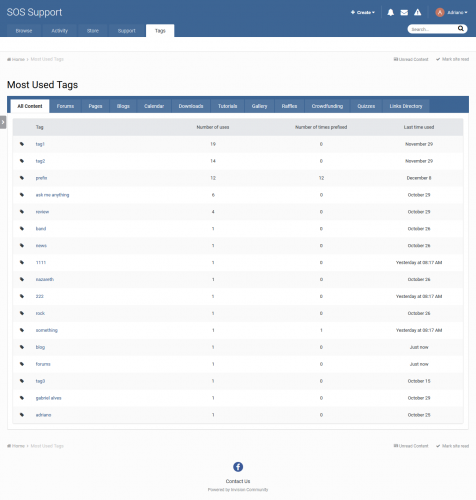
This application will list all the most used tags in all applications that you have installed on your board: each application that its content item uses tags will have a tab in this resource.

Settings:

  • Display application icon in tabs?
  • Number of tags to display
  • Order listing
    • Tag
    • Number of uses
    • Number of times prefixed
  • Display tags from apps:
    • All apps that its content items will appear as an option here. So if you don't want to show tags from Calendar, for example, just disable it in this setting

Notes:

  • Apps tab order is defined in ACP -> System -> Applications. It will show in this resource the same app order from there.
  • Apps icons are defined by their developer and may happen that more than one app uses the default icon. In this case, you have to request the dev to add an icon to the app.

What's New in Version 1.1.2

Released

  • IPS 4.7.12 compatibility

User Feedback

You may only provide a review once you have downloaded the file.

There are no reviews to display.

Other files from Adriano

Important Information

By using this site, you agree to our Terms of Use and Privacy Policy.

Configure browser push notifications

Chrome (Android)
  1. Tap the lock icon next to the address bar.
  2. Tap Permissions → Notifications.
  3. Adjust your preference.
Chrome (Desktop)
  1. Click the padlock icon in the address bar.
  2. Select Site settings.
  3. Find Notifications and adjust your preference.